





MT610/Pro Frequently Asked Questions
1. Indicator Light Status / 指示灯状态
Q: What is the indicator light status of MT610?
A: No specific solution is provided in the source table.
中文标注: MT610 指示灯状态;原表仅有“指示灯状态”,无对应解决方案。
2. Difference Between MT610 and MT610 / MT610 和 MT610 的区别
Q: What is the difference between MT610 and MT610?
A: The appearance is the same. The resolution is different, and the printing speed may also be slightly different.
中文标注: 外观造型一样,分辨率不一样,打印速度可能也略微不一样。
3. Consumable Specifications / 耗材规格
Q: What are the consumable specifications?
A: MT610 PRO supports US Letter, A4/A5 paper widths from 100 to 216 mm.
中文标注: MT610 PRO 支持 US Letter、A4/A5,纸张宽度 100–216 mm。
4. MT610(iDPRT) User Guide / MT610(iDPRT) 使用教程
Q: How to use MT610(iDPRT)?
A: For phone printing, MT610 PRO needs to be used with our official APP, HerePrint. Please refer to:
https://www.amazon.com/live/video/059f1a822da643cc81c44f40724416a2?ref_=dp_vse_ibvc2
Download HerePrint: https://hprint.hprt.com/app_en
For computer printing, download and install the driver from: https://www.idprt.com/downloads/
Video reference:
https://www.amazon.com/live/video/070bdc8f13664fe3a9d0ca816a6db8c6?ref_=dp_vse_ibvc1
中文标注: MT610(iDPRT) 使用教程;手机打印需用官方 APP HerePrint,电脑打印需安装驱动,链接同上。
5. MT610(HPRT) User Guide / MT610(HPRT) 使用教程
Q: How to use MT610(HPRT)?
A: For phone printing, MT610 PRO needs to be used with our official APP, HerePrint. Please refer to:
https://www.amazon.com/live/video/059f1a822da643cc81c44f40724416a2?ref_=dp_vse_ibvc2
Download HerePrint: https://hprint.hprt.com/app_en
For computer printing, download and install the driver from: https://www.hprt.com/Downloads/
Video reference:
https://www.amazon.com/live/video/0c9acd28441a48ec803dba12d7ded7f1?ref_=dp_vse_ibvc0(没用)
中文标注: MT610(HPRT) 使用教程;手机打印需用 HerePrint,电脑打印需安装驱动,链接同上。
6. Self-Test / 自检
Q: How to print a self-test page?
A: Please load the paper correctly, quickly press the power button three times, then the printer will print a self-test page.
中文标注: 自检:正确装纸,快速按电源键三次,打印机会打印自检页。
7. Computer Firmware Upgrade / 电脑端升级固件
Q: How to upgrade firmware on a computer?
A: Firstly, download the firmware attached to your desktop. Then install HPRTUtility, click “Add Printer”, select “MT800” (not MT610), click “FW Update”, select the firmware file of MT610, click “Update”. Finally, restart the printer and the computer.
Path:
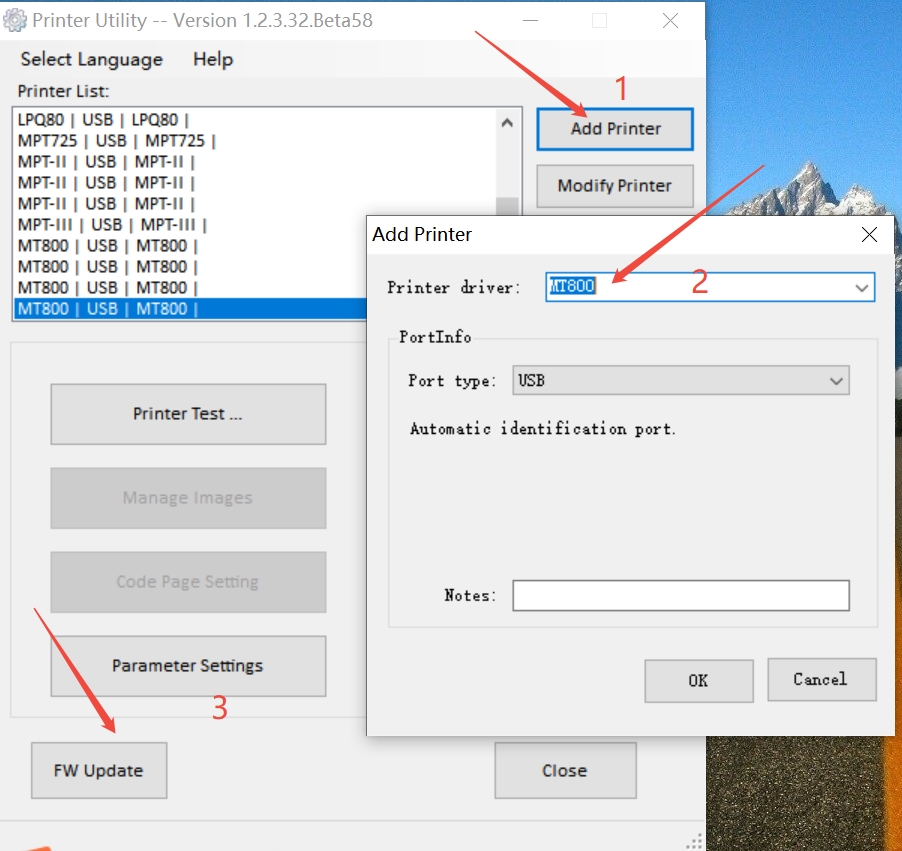
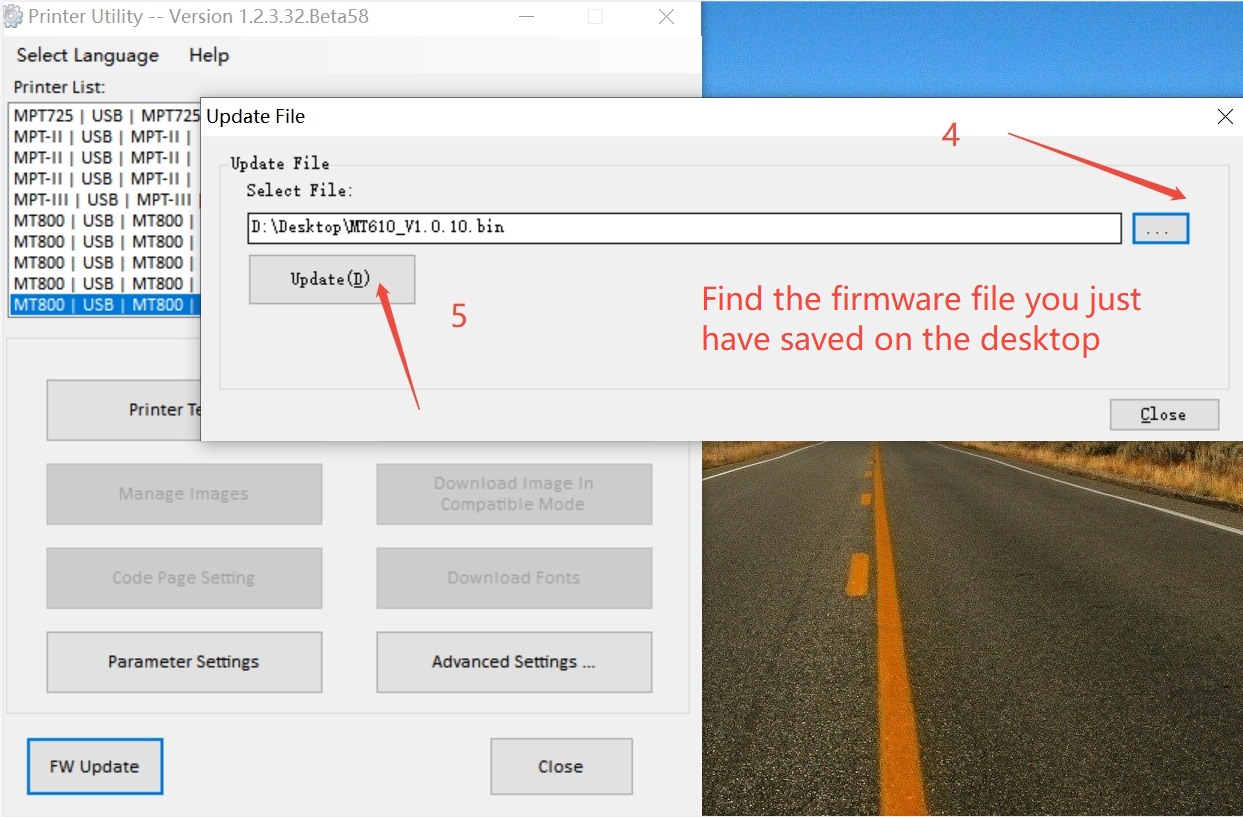
中文标注: 电脑端升级固件;下载固件,安装 HPRTUtility,添加打印机选 MT800(不是 MT610),FW Update 选 MT610 固件,Update,重启打印机和电脑。
8. Bluetooth Multi-Connection / 是否支持蓝牙多连接
Q: Does MT610 support Bluetooth multi-connection?
A: Check the Bluetooth version on the self-test page.
中文标注: 看自检页上的蓝牙版本。
9. Load Multiple Sheets at Once / 一次放入多张纸张
Q: Can I load multiple sheets of paper at once?
A: Put the thermal paper face up into the paper inlet; the printer will automatically pull the paper in. Only one sheet of paper can be put in at a time. Or you may use rolling paper and set the corresponding paper type.
中文标注: 一次放入多张纸张;热敏纸正面朝上放入进纸口,打印机自动拉纸。一次只能放一张,或使用卷纸并设置对应纸张类型。
10. How to Print Black Mark Paper / 黑标纸怎么打印
Q: How to print black mark paper?
A: Change the paper type to folded paper in the app, then issue the task, finally load the paper.
中文标注: 海外无耗材限制,可以使用普通热敏 A4 纸,但黑标纸、贴纸只能使用官方的。步骤:在 APP 里面先改纸张类型为折叠纸,再下发任务,最后再装纸。
11. Linux Does Not Recognize Printer / Linux 系统不识别打印机
Q: Linux system does not recognize the printer.
A: Please refer to the following steps to troubleshoot:
-
Use another computer with Windows or Mac system to check whether there is a problem with the printer.
Download and install the driver: https://download.hprt.com/Downloads/
Windows USB: https://www.youtube.com/watch?v=cP5PGDzHdKA
Windows Bluetooth: https://www.youtube.com/watch?v=RA7upj0na2o
Mac USB: https://www.youtube.com/watch?v=uMluwOfY_f4 -
If the printer can print well with Mac or Windows, there is no problem with the printer. Please replace another printer or USB connected device to connect to your Linux OS to check.
中文标注: 确定是打印机问题还是系统问题:换系统看能否识别;换打印机或 USB 设备看 USB 能否识别。
12. How to Print Labels / 怎么打印标签(地址标签)
Q: How to print labels or address labels?
A: MT610 PRO supports multiple formats of documents, such as PDF, Word, PPT, Excel, JPG, PNG, web pages. It cannot print labels. If you need to print labels, it is recommended to use a label printer.
中文标注: 不支持打印标签,仅支持文档打印;建议使用标签打印机。
13. Repeatedly Printing the Same Page / 重复打印同一页
Q: The printer repeatedly prints the same page.
A: Check whether it is a random page or a specific page in the document. For random pages, check document content height, paper settings, and actual paper. For a specific page, try another document and capture packets to analyze whether the host sends abnormal data.
中文标注: 看是随机哪一页出现,还是跟着打印文档某一页走。随机的看文档内容高度、纸张设置和实际纸张是否对应;跟着文档某一页走的话,换个文档看下,针对有问题的部分抓包分析,是否上位机发送异常。
14. Amazon Consumables Links / 亚马逊耗材链接
Q: Where to buy Amazon consumables?
A: Choose according to the MT610 PRO brand:
HPRT: https://www.amazon.com/dp/B0DG5KH7F1
IDPRT: https://www.amazon.com/dp/B0CXSRXQXZ
PRT: https://www.amazon.com/dp/B0DHCFSCND
中文标注: 看对方的 MT610 PRO 品牌是什么,选择对应耗材。
15. Change Paper Type / 更改纸张类型
Q: How to change paper type?
A: Please refer to the following instructions to custom the size you need:
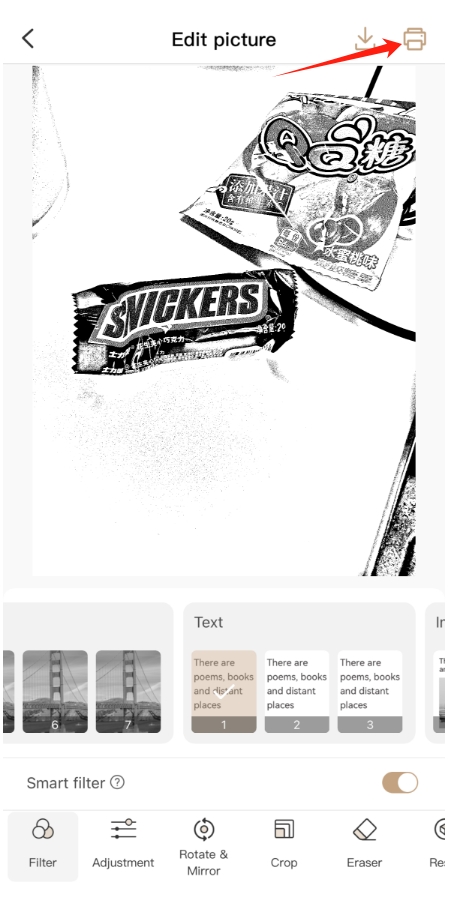
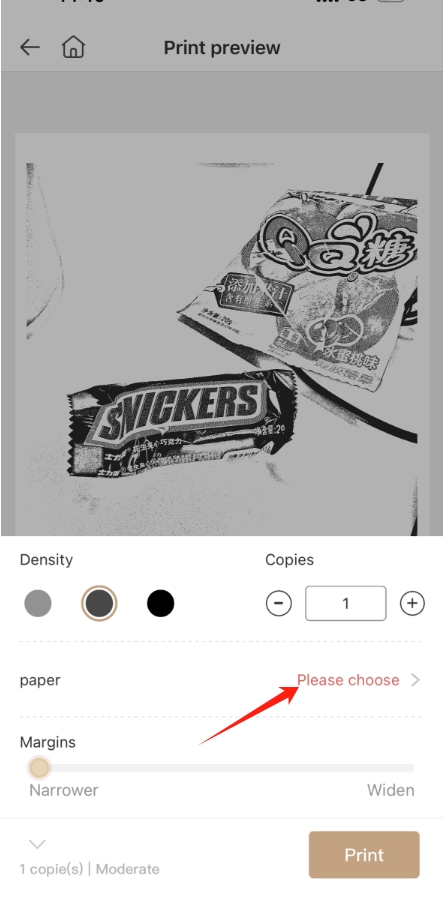
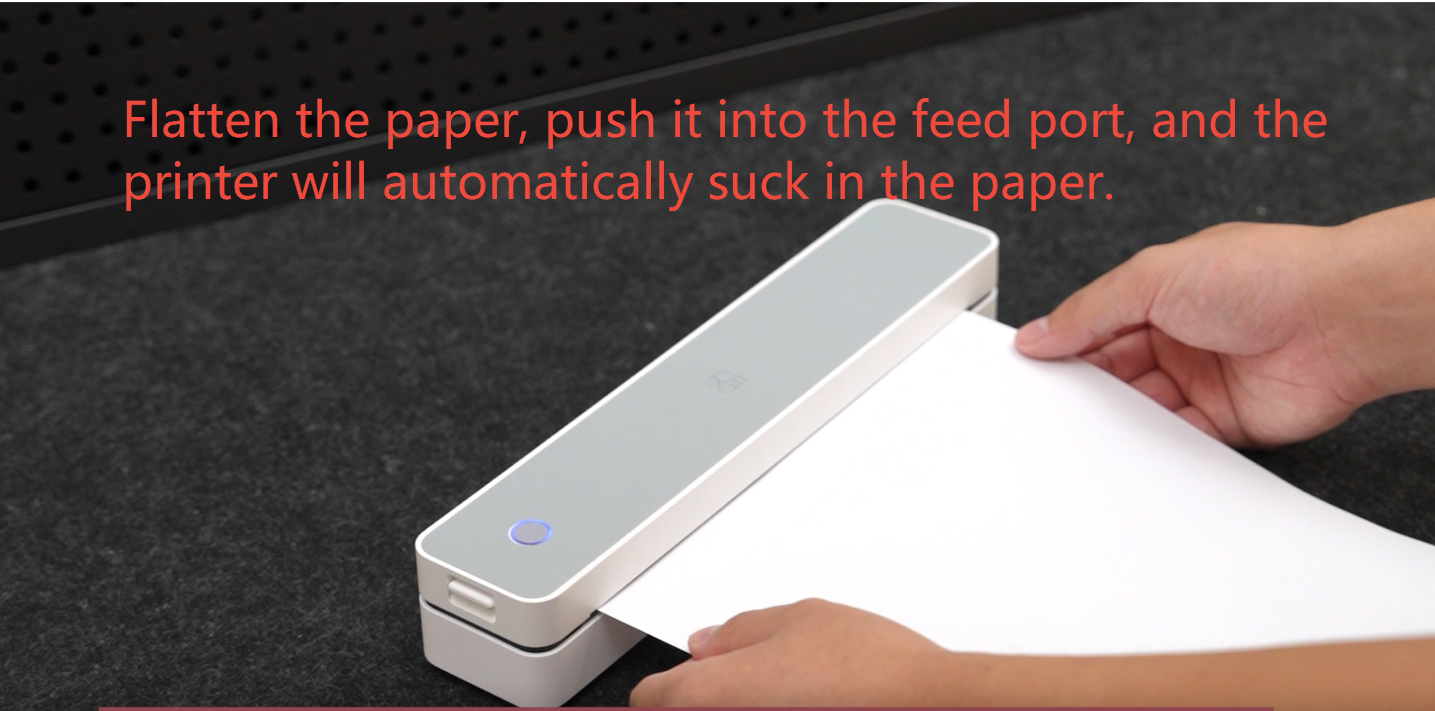
If the size you custom is beyond the range, maybe it will cause the paper cannot be recognized.
中文标注: 更改纸张类型;按说明自定义尺寸,超出范围可能导致纸张无法识别。
16. Paper Loads and Feeds Immediately, Cannot Print Self-Test / 纸张装入,立即走纸,无法打印自检页
Q: After loading paper, it feeds immediately and cannot print a self-test page.
A: It may be a firmware issue. Troubleshoot step by step:
-
Is the paper from HPRT? Have you ever connected and sent printed content before? Does this happen every time you load paper? Has this happened before?
-
Clear cache on the app and reinstall it. Restart the printer, do not connect with your phone, then load the paper to check if it feeds immediately. If yes, connect the printer to a computer and reload the firmware. If it does not feed immediately, follow the tutorial step by step.
After updating the firmware, if the paper still prints out immediately, it may be caused by a hardware issue; contact the seller.
中文标注: 有可能是固件问题,需要排查操作问题,最后非固件只能是硬件问题。步骤包括确认官方纸张、清缓存重装 APP、重启打印机不连 APP 装纸、电脑更新固件;更新后仍立即走纸,硬件问题。
17. App Prompts Positioning Error / app 提示定位异常
Q: The app prompts a positioning error.
A: 1) Confirm whether it is official paper; black mark paper needs to be selected as Folded paper.
-
Upgrade firmware.
Generally, a positioning error may be caused by black mark consumables.
中文标注: 先确认是不是官方纸张(黑标要选择 Folded paper),升级固件;一般情况报定位异常可能是黑标耗材的问题。
18. Firmware Upgrade Error / 升级固件过程中提示错误
Q: Firmware upgrade prompts: Download failure! Restart the printer please! Cause of the error File error!
A: First check whether the firmware version matches the model: MT610--V1.0.XX, MT610PRO--V1.1.XX. It may be a USB connection issue; unplug and replug the USB cable. If it still fails, SN cloud push may be needed.
中文标注: 先判断固件版本是否对应机型,MT610--V1.0.XX,MT610PRO--V1.1.XX;可能是 USB 连接问题,拔插 USB 重新连接;还是不行,需要 SN 云端推送。
19. Phone Printing Normal, Computer Printing All Black / 手机端打印正常,电脑端打印全黑
Q: Phone printing works, but computer printing is all black.
A: This issue has been fixed. Download the new driver from the official website (4.29).
中文标注: 此问题已修复,从官网下新的驱动即可(4.29)。
20. Mac USB Offline / Mac USB 脱机,之前可正常打印
Q: Mac USB is offline, but it could print normally before.
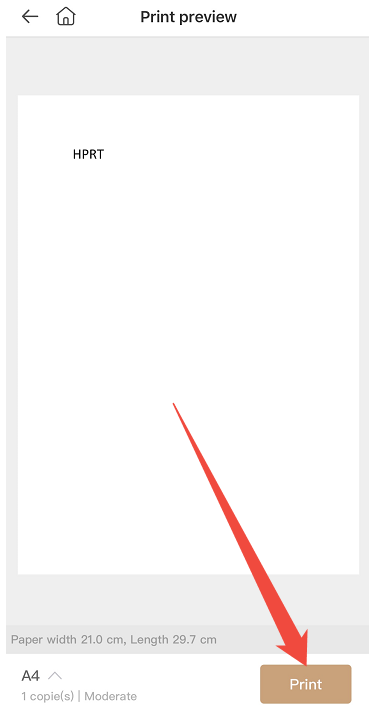
A: 1) Print a self-test page. 2) Reinstall the driver and print a test page. 3) Replace the adapter port, USB cable, or adapter. 4) Provide a complete operation video.
Driver: https://download.hprt.com/Downloads/
Test page path:
中文标注: 自检;重装驱动,打印测试页;换转换接口、USB 线、转接器;提供操作视频。
21. Phone Printing Normal, Computer Printing Blank / 手机打印正常,电脑打印空白
Q: Phone printing works, but computer printing is blank.
A: 1) Check whether it is thermal paper and whether it is loaded upside down.
-
Print a self-test page.
-
Print a test page.
-
If the test page is blank, the port may be wrong.
Windows: check printing port number.
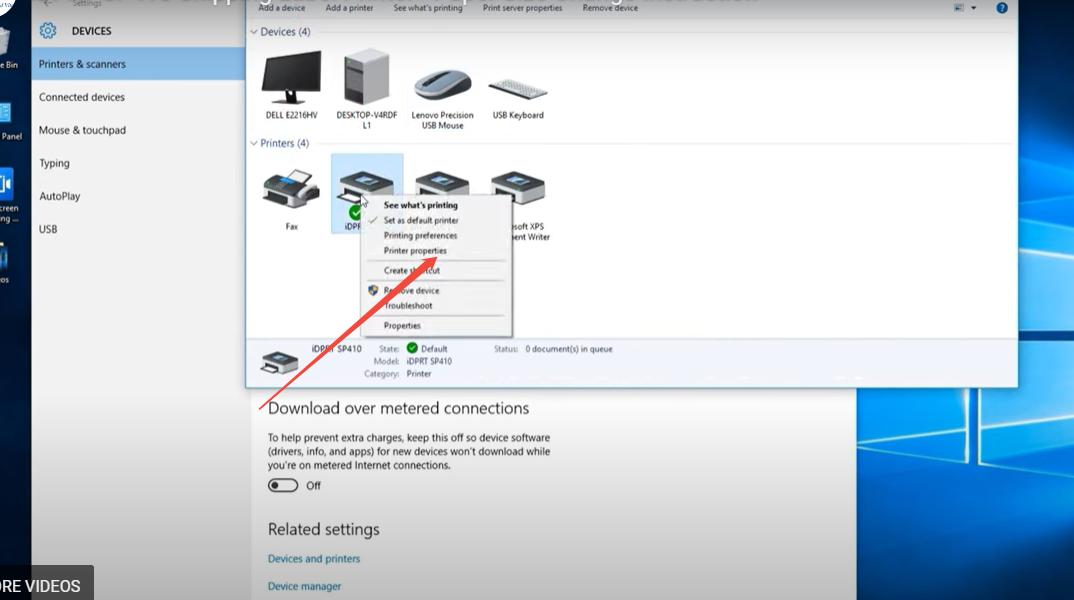
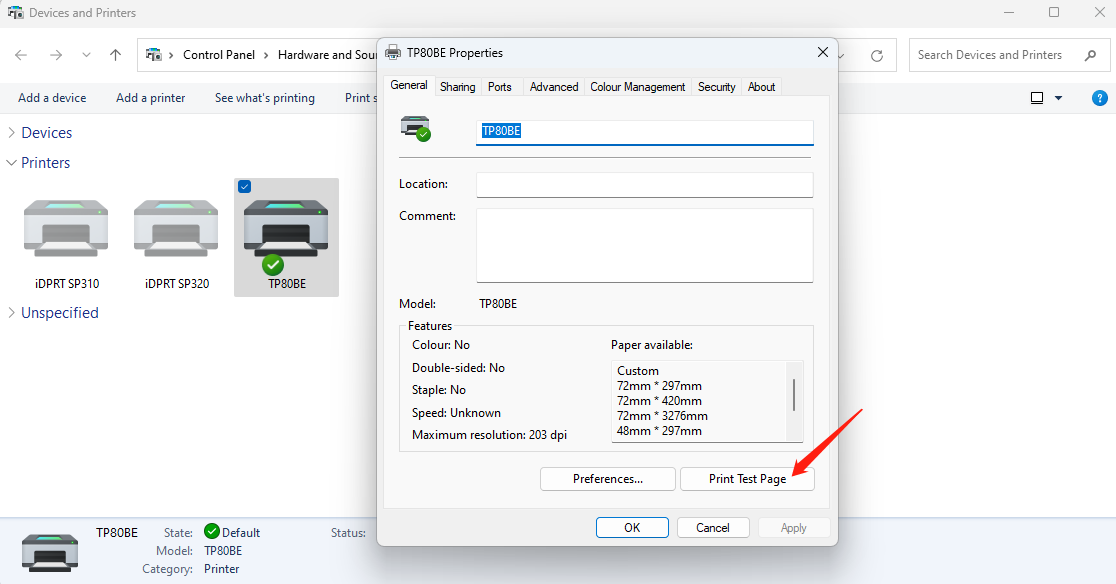
Mac: replace adapter port or adapter, or reinstall the driver.
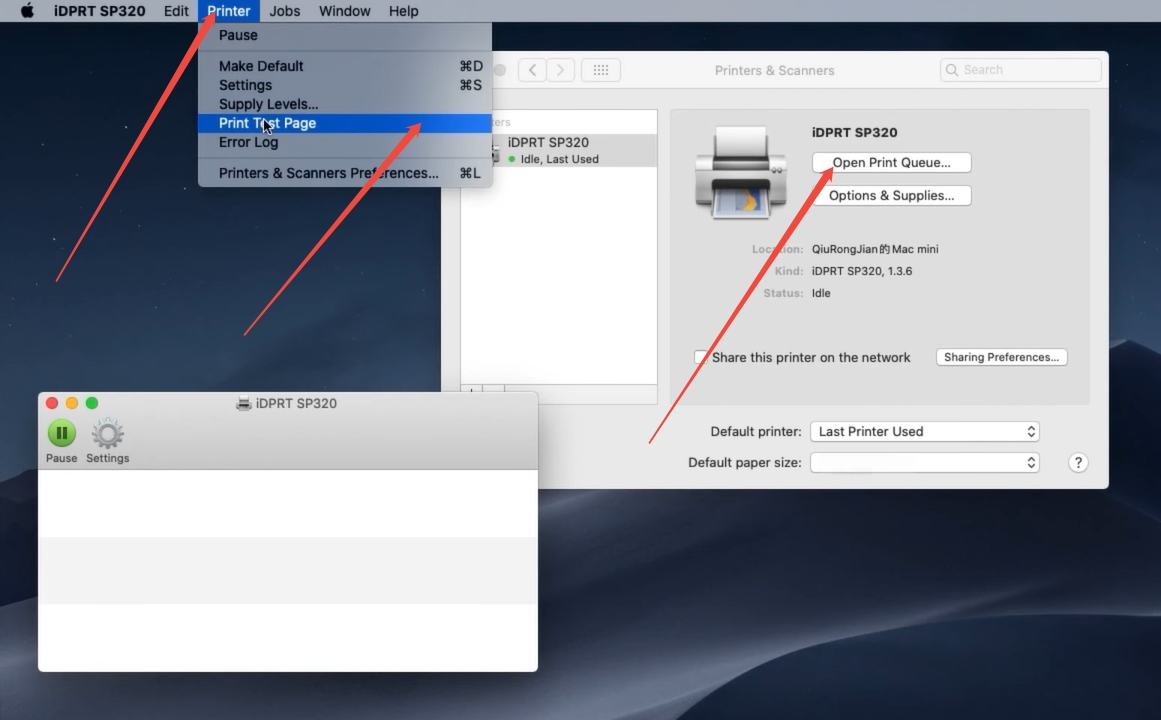
中文标注: 检查是否为热敏纸、是否装反;打印自检页;打印测试页;测试页空白,端口可能有误。
22. HerePrint Multi-Page Printing Restarts from First Page / HerePrint 打印多页文档时,打印第一页后放纸,从第一页开始打印
Q: When printing a multi-page document in HerePrint, after the first page is printed and paper is loaded, it restarts from the first page.
A: Set the printing page number according to your needs before printing. When the first page is printed, the app prompts “Out of paper”. Do not perform any operation or cancel printing. Directly load the paper, and the printer will automatically continue to print the next content.
Paths:
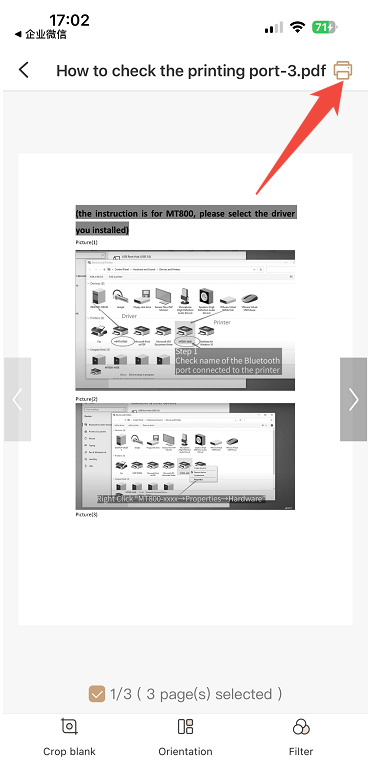
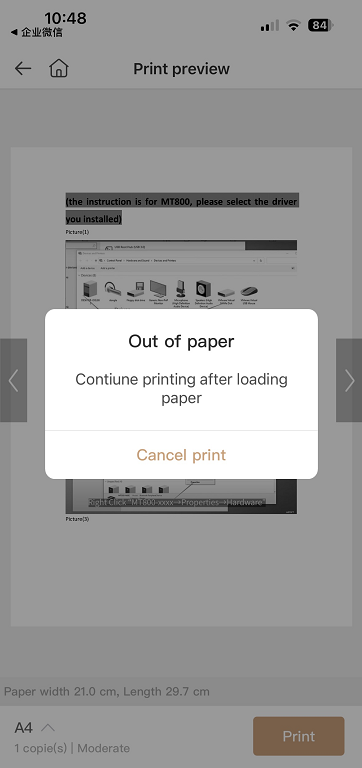
中文标注: 第一页打印结束时,app 提示 “Out of paper”,不进行任何操作,不取消打印任务,直接装入纸张,打印机会自动续打接下来的内容。
23. How to Create Label Text in HerePrint / 在 HerePrint 怎么制作标签文本
Q: How to create label text in HerePrint?
A: MT610 PRO can print documents or pictures. It supports multiple formats, such as PDF, Word, PPT, JPG, PNG, web pages. Printing label text requires a label maker.
中文标注: MT610 PRO 可以打印文档或图片,支持多种格式;打印标签文本需要标签机。
24. MT610 PRO Does Not Feed Paper / MT610 PRO 不进纸
Q: MT610 PRO does not feed paper.
A: Please check the remaining power of the printer. Low power will also cause the printer to not suck the paper.
Instruction: https://www.youtube.com/watch?v=G5P6zM7cKQc&list=PL7akAFgUVI9TsyXOknYQgGcQEoslB9vCu&index=30
Put the paper into the paper inlet and push hard to allow the sensor to recognize the paper. Provide a complete video of the printing operation, including loading the paper.
What type of paper are you using? Regular thermal A4 paper or black mark paper? Is there any error message on the app?
中文标注: 检查电量;装纸是否正确,提供纸张类型;提供操作视频。
25. Printing Images Retreats Then Moves Forward / 打印图片,会回退一点再前进
Q: When printing images, the printer retreats a little then moves forward.
A: Need firmware version analysis.
中文标注: 要固件版本分析。
26. How to Charge / 怎么充电
Q: How to charge MT610 PRO?
A: Please note that power interface parameters are 5V, 2A.
中文标注: 电源接口参数是 5V,2A。
27. Repeatedly Printing the Same Page on MT610 PRO / MT610 PRO 重复打印相同一页
Q: MT610 PRO repeatedly prints the same page.
A: 1) Clear the queue, restart the printer, print a test page to rule out hardware issues.
-
Print another document to rule out document compatibility issues.
-
If all documents repeat the same page, reinstall the driver. If only a specific document repeats, check print settings: in the print dialog, uncheck “Print to file”. Make sure “Copies” or “Page Range” is not set incorrectly.
中文标注: 清除队列,重启打印机,打印测试页,排除硬件问题;打印其他文档,排除文档兼容性问题;所有文档都重复打印同一页,重装驱动;特定文档重复打印,检查打印设置:取消勾选“打印到文件”,确保未选择“多份副本”或“页码范围”错误。备注:重装驱动可以解决(不能解决 aaa)。
28. Chromebook Printing Failed / Chromebook 打印失败
Q: Chromebook printing failed.
A: Firstly download and install the driver for your computer: https://download.hprt.com/Downloads/
Instruction: https://www.youtube.com/watch?v=RA7upj0na2o
After installing, check whether the printing port is correct. Then try printing in Chromebook.
中文标注: 要先安装电脑系统的驱动,选择正确端口号,再到 Google 添加扩展程序。
29. MT660 Prints Blank / MT660 打印空白
Q: MT660 prints blank.
A: Please refer to the instructions attached to reinstall the paper, and then try printing again.
Path: \\10.10.15.2\客服中心\技术支持部\海外技术支持\技术文档附图和视频\MT610\MT610 PRO\海外\图片\MT660(打印纹身纸)
If the issue still exists, confirm:
-
What device does the printer connect to? What is the system?
-
Is there any error message on the app? Provide screenshots.
-
Provide a complete video of the printing operation, including loading the paper.
中文标注: MT660 打印空白;重新装纸,确认设备/系统、APP 错误提示、操作视频。
30. Print 4×6 Label / 打印 4×6 标签
Q: How to print a 4×6 label?
A: MT610 PRO effective printing width is 100 to 216 mm. Paper widths outside this range cannot be printed. Set the corresponding paper size and adjust the paper limiter to the corresponding paper width scale line.
Path: 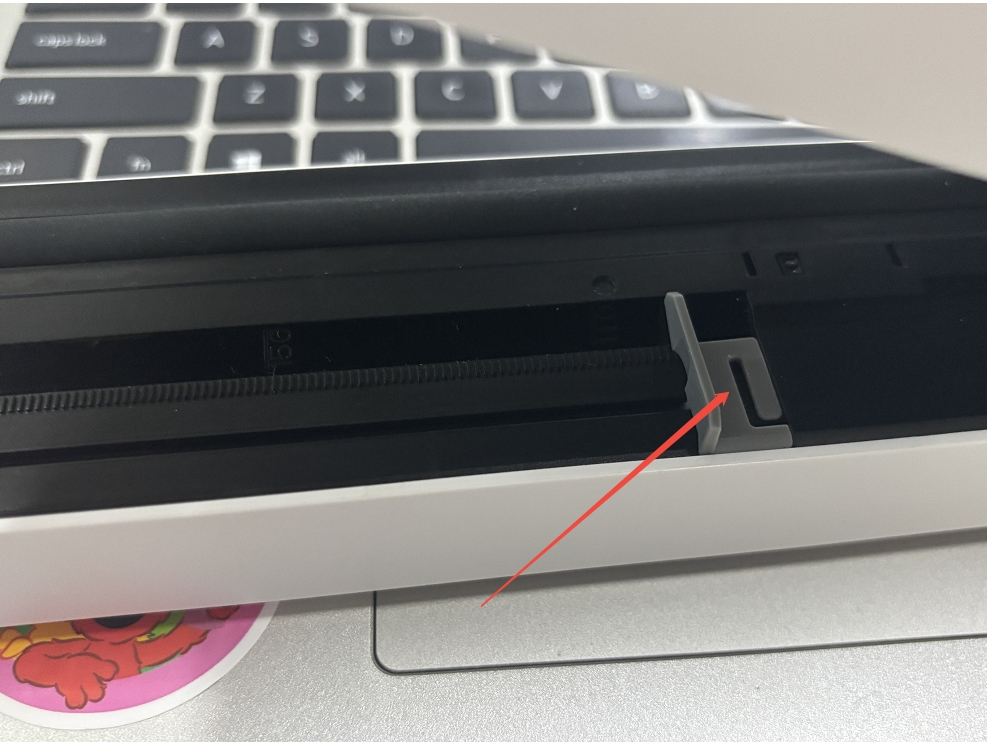
中文标注: 有效打印宽度 100–216 mm,超出不能打印;设置对应纸张尺寸,调整限位器。
31. MT610 Prompts High Temperature / MT610 提示高温
Q: MT610 prompts high temperature.
A: Please wait for 15 minutes before printing. Printing about 15 pages of a standard document will not cause an overheating error, except for documents with excessive black blocks. Avoid printing too many pages at once or images with excessively large black blocks. If the problem persists, upgrade the firmware of MT610 PRO in HerePrint if necessary.
中文标注: 提示高温;等待 15 分钟再打印;避免一次打印过多页或大黑块图片;必要时在 HerePrint 升级 MT610 PRO 固件。
32. MT660 Out of Paper / MT660 out of paper
Q: MT660 reports out of paper.
A: Please confirm:
-
What paper type are you using? Regular Thermal Paper or Tattoo Paper? Is it from HPRT?
-
What printing function are you using? Regular Thermal Printing or Tattoo Printing?
Path:
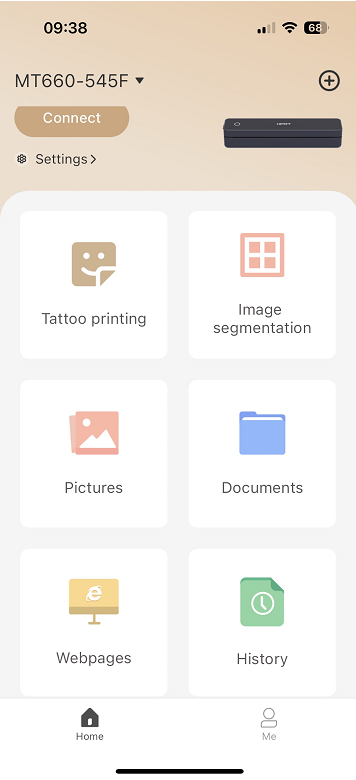
- Turn on the printer, load the paper, quickly press the power button three times to print a self-test page. Provide a picture.
-
Provide screenshots of the error message in HerePrint and a complete video of printing operation, including loading the paper.
中文标注: 确认纸张类型是否官方;打印自检页;提供错误截图和视频。
33. MT610 Keeps Feeding Paper / MT610 走纸不停
Q: MT610 keeps feeding paper.
A: The source table only has “2”; information is insufficient.
中文标注: 原表仅有“2”,信息不足。
34. Tool No Restore / 工具无还原
Q: Tool no restore?
A: No solution is provided in the source table.
中文标注: 原表信息不足。
35. MT610 Black Mark Paper Multi-Page Issue / MT610 黑标纸打印多页内容问题
Q: MT610 prints multi-page content on black mark paper, but only the first page prints and the rest are blank, with a position error. After cutting the paper, printing is normal.
A: 1) Check whether the paper is official.
-
Update the app and firmware.
-
Check whether the paper type is set correctly and whether the limiter is adjusted.
-
Check whether printing app material content is normal.
-
Check the sensor.
中文标注: 纸张是否官方;更新 app 及固件;检查纸张类型是否设置正确,限位器是否调节;打印 app 素材内容是否正常;侦测器问题。
36. HerePrint Connection Shows “Offline” / HerePrint 连接提示 “offline”
Q: HerePrint connection shows “offline”.
A: 1) Clear cache and reinstall the app.
-
Upgrade firmware.
中文标注: 清除缓存,重装 app;固件升级。
37. Black Mark: Paper Position Error, Keeps Feeding / 黑标:Paper position error,走纸不停
Q: Black mark paper shows “Paper position error” and keeps feeding.
A: 1) Check whether the paper is official.
-
Update firmware and app.
-
Check whether it keeps feeding after the error prompt.
-
Check whether the blank page is extra or actually printed blank.
中文标注: 纸张是否官方;更新固件和 app;提示异常后是否走纸不停;空白页是多余的还是打印出来的空白。
38. Parse Failed / Parse failed
Q: App shows “Parse failed”.
A: Non-PDF documents need cloud parsing, then preview and print after parsing into PDF. This prompt should mean cloud parsing timed out. Try another network first. If it still fails, provide the document; the file may be too large or the document content parsing may cause the server not to respond.
中文标注: 打印文档非 PDF 的都要走云端解析,解析成 PDF 后再预览和打印。这个提示应该是云端解析超时了,先换个网络试下。如果不行提供下文档,可能文件太大超时或者文档内容解析出错导致服务器没响应了。
39. Check Chromebook Manifest Version / 查看 Chromebook Manifest Version
Q: How to check Chromebook Manifest Version?
A: chrome://version
中文标注: 查看 Chromebook Manifest Version。
40. Printing Sticker Labels Comes Out Blank / 打印贴纸标签走空白
Q: Printing sticker labels comes out blank.
A: Other brands’ backing paper has different translucency, which affects detection.
中文标注: 其他品牌纸张底纸透光度不同,影响侦测。
41. Load Paper Automatically Feeds / 放纸自动走纸
Q: The printer automatically feeds paper after loading.
A: No solution is provided in the source table.
中文标注: 原表仅有“放纸自动走纸”,无解决方案。
42. Email Contacts / 邮箱
Q: What are the email contacts?
A: ruishalmeida@gmail.com; alexunderparfyonov@gmail.com
中文标注: 原表记录的两个邮箱。
43. Paper Size Conversion / 纸张尺寸换算
Q: What are the paper size conversions?
A:
-
8.5 × 11 inch = 216 × 279 mm, US Letter
-
11.7 × 8.5 inch = 21 × 29.7 cm, A4
-
4 × 6 inch = 10.2 × 15.2 cm
中文标注: 原表写 8.5*11 inch == 216*279 cm,实际应为 mm;US Letter。A4:11.7*8.5 inch == 21*29.7 cm。4*6 inch == 10.2*15.2 cm。
44. Paper Type / 纸张类型
Q: What paper types are supported?
A: MT610 adopts Direct Thermal Printing Technology, which is required to be used with Thermal Paper. Sticker Paper and Folded Paper with black blocks must be from HPRT/iDPRT; other brands will be unusable due to Paper Translucency. Sheet of Paper and Continuous Paper can be from other brands. You could directly purchase the paper from where you purchased the printer. If you could not find it, provide the printer model and country.
中文标注: MT610 采用直接热敏打印技术,需使用热敏纸。贴纸和带黑标折叠纸必须来自 HPRT/iDPRT,其他品牌会因透光度不可用;单张纸和连续纸可用其他品牌。可从购买打印机处购买。
45. Points to Note / 需要注意的点
Q: What points should be noted?
A:
-
Paper type: Sticker Paper and Folded Paper with black blocks must be from HPRT/iDPRT. Sheet of Paper and Continuous Paper can be from other brands.
-
Printed content: Do not print too many pages at a time or documents with excessive black blocks, to extend print head life.
-
Routine maintenance: Clean the print head periodically with alcohol after powering off to prevent adhesive residue or paper scraps from sticking to it.
中文标注: 纸张类型、打印内容、日常维护注意事项同上。
46. Print 4×6 / 102×152 / 打印 4*6
Q: How to print 4×6 / 102×152?
A: Sticker Paper and Folded Paper with black blocks must be from HPRT/iDPRT; other brands will be unusable due to Paper Translucency. Sheet of Paper and Continuous Paper can be from other brands. You could try labels from other brands. Please firstly operate “Paper Learning” in HerePrint.
Path:
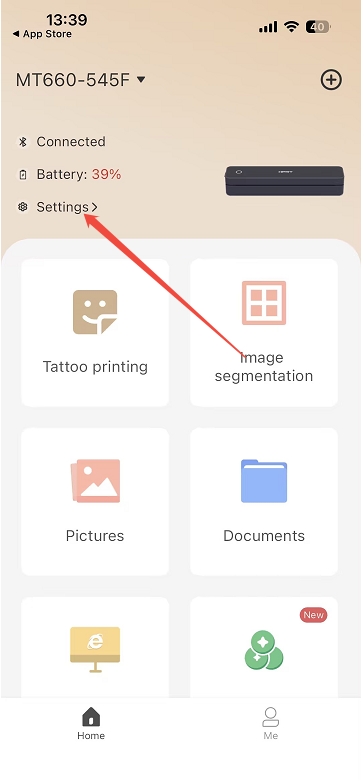
Then set the corresponding paper type and paper size.
Path:
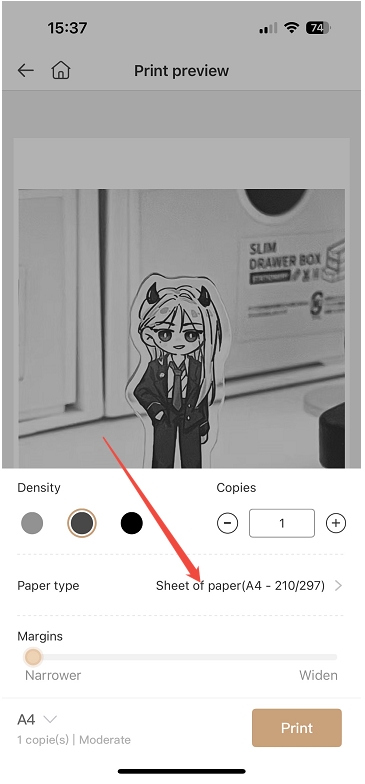
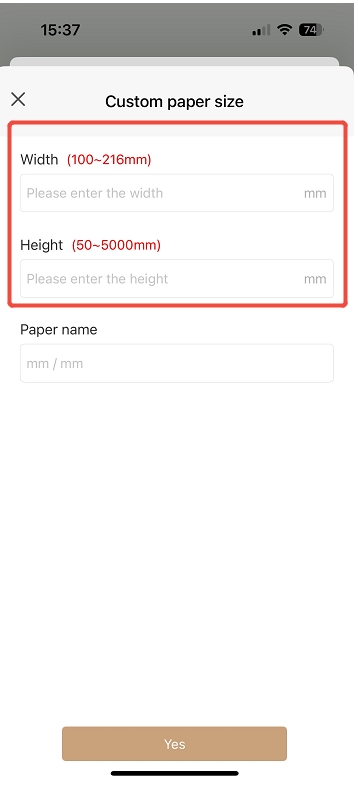
If it doesn’t work, try other label printers; MT610 is mainly used to print documents.
中文标注: 贴纸和带黑标折叠纸必须来自 HPRT/iDPRT;单张纸和连续纸可用其他品牌。可尝试其他品牌标签,先在 HerePrint 操作 Paper Learning,再设置纸张类型和尺寸;不行建议标签打印机,MT610 主要用于文档。
47. MT660 Reference Video / MT660 参考视频
Q: Is there a reference video for MT660?
A: https://www.youtube.com/watch?v=hpRbsuHKdAE
中文标注: MT660 参考视频链接。
48. Repeatedly Prints First Page Every Time / 每次重复打印第一页
Q: Every time the printer repeatedly prints the first page.
A: In the printer list, right-click your printer icon, select “Printer Properties” → Advanced → Print directly to the printer. If the option is gray and cannot be changed, check whether the computer’s Print Spooler service is normal, or temporarily operate with administrator permissions.
中文标注: 在打印机列表中,右键单击打印机图标,选择“打印机属性”--高级--直接打印到打印机。如果灰色无法更改,检查 Print Spooler 服务或管理员权限。
49. Paper Present but Reports Out of Paper / 有纸报无纸
Q: Paper is present but the printer reports out of paper.
A: It may be because the paper type is selected incorrectly. For example, black mark paper is used but regular paper is selected.
中文标注: 有纸报无纸也有可能是纸张类型选错了;用的是黑标,选的是普通。
50. Invalid or Insufficient Information / 无效或信息不足条目
Q: Are there any invalid or insufficient entries?
A:
-
MT660 / 3: insufficient information.
-
七下标签学习?: insufficient information.
-
工具无还原: no solution.
-
MT610 走纸不停 / 2: only “2”, insufficient information.
中文标注: 原表中有少量条目信息不足或无效,如“MT660 3”“七下标签学习?”“工具无还原”“MT610 走纸不停 2”等,建议补充完整后再整理进训练数据。